
I am using VS2022, you can use lower version also.
Step 1: Add ILMerge.MSBuild.Task using Nuget to your Visual Studio project:Navigate to Visual Studio Project → Tools →NuGet Package Manager → Package Manager Console

Step 2: Use command “Install-Package ILMerge.MSBuild.Task” and paste in package manager console.

Step 3: Also need to install the ILMerge Package using command “Install-Package ilmerge” in the package manager console.

(Need to merge Cp.Xrm.ExecutivelistUpdater.dll, Crm.Workflow.dll and Microsoft.Crm.SDK.Proxy.dll)


Step 5: Merge Output is present in the ILMerge folder (Under ILMerge Folder Cp.Xrm.ExecutivelistUpdater.dll is merged output).The merged dll contains the component of both the dlls (i.e. Cp.Xrm.ExecutivelistUpdater.dll, Crm.Workflow.dll and Microsoft.Crm.SDK.Proxy.dll). Now you have to use this dll (i.e. Cp.Xrm.ExecutivelistUpdater.dll ) for further processes to reflect the changes in your CRM.

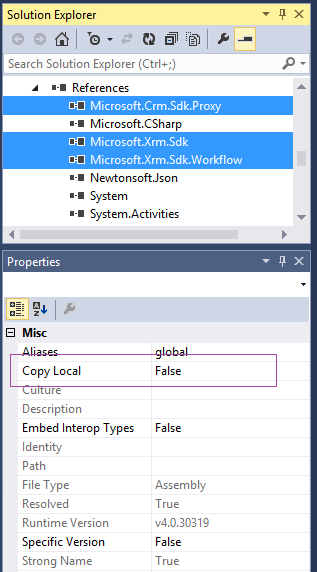
Step 6: By default, all references with Copy Local equals true are merged with your project output. To avoid merging of CRM SDK DLLs and Microsoft.IdentityModel.DLL into our DLL we need to select the three files and set the property “Copy Local” to false.

No comments:
Post a Comment